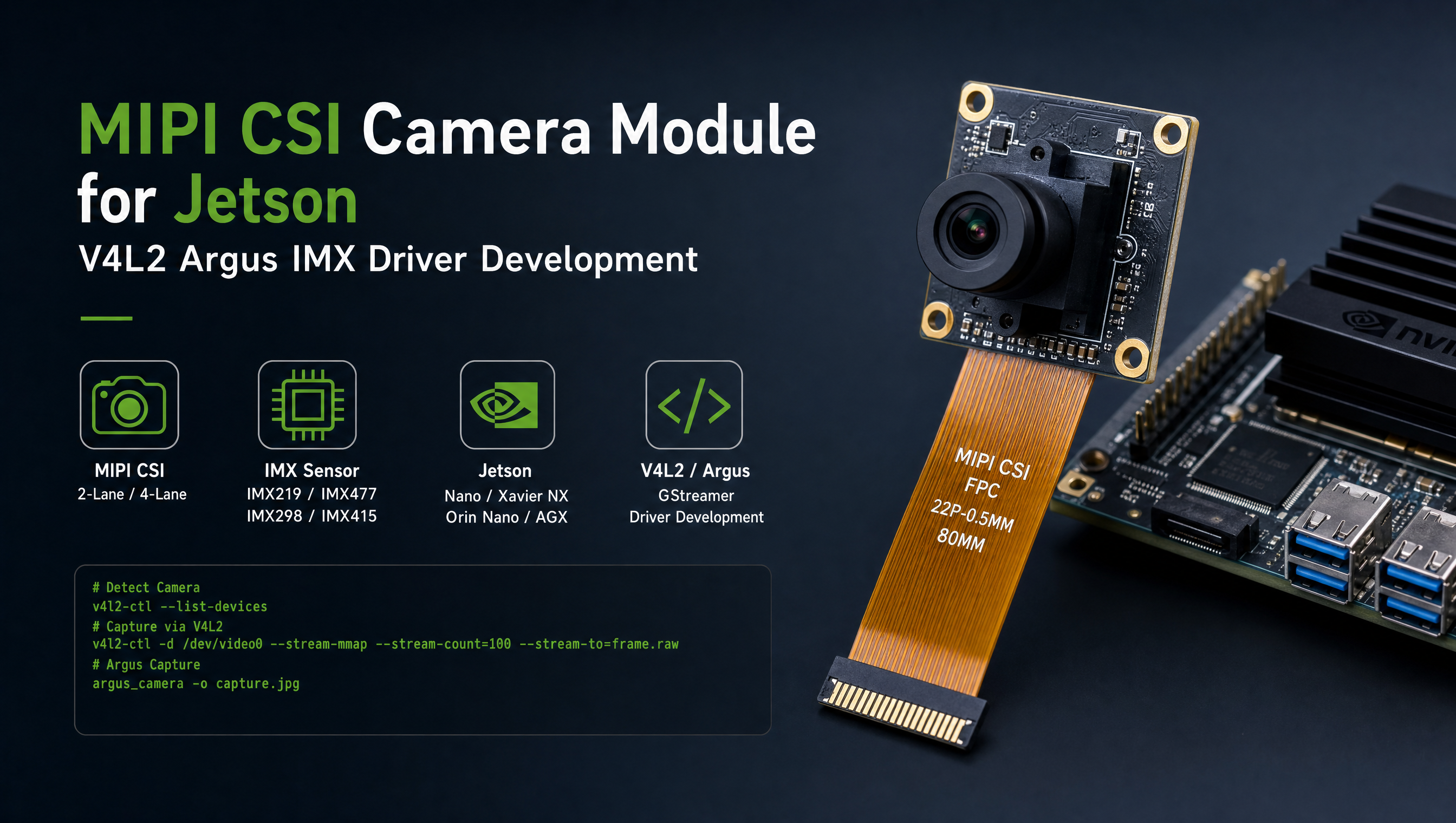
CSI camera driver on Jetson: V4L2, Argus, and IMX sensor bring-up
Getting a CSI camera working on Jetson involves two separate software paths, Argus for ISP-processed capture and V4L2 for raw access, and the right choice depends on what your application actually needs. The driver layer sits between your camera sensor and either of these APIs, and that’s where most bring-up time gets spent. This post covers how the full stack fits together and where engineers get stuck.
Key Insights
- V4L2 and Argus are not competing, they’re layered. The kernel driver exposes a V4L2 node; Argus sits on top of it. You need the kernel driver working before either API will function
- IMX sensor bring-up almost always fails first on the devicetree, not the driver code itself, wrong i2c bus, wrong lane count, or wrong MCLK frequency
media-ctlis your first debugging tool. If the sensor entity doesn’t show up there, nothing else will work- The Argus daemon (
nvargus-daemon) must be running fornvarguscamerasrcand LibArgus to function, it’s a separate process that gets missed in headless setups - Camera module vendors (Leopard Imaging, e-con, ArduCam) ship ready-to-use BSP packages for most IMX sensors; building a driver from scratch is only necessary for custom silicon
V4L2 vs Argus: which one do you actually need?
Both are valid, and most production Jetson deployments use both at different layers. The confusion comes from treating them as alternatives.
| V4L2 | Argus (LibArgus / nvarguscamerasrc) | |
|---|---|---|
| Layer | Kernel driver interface | Userspace camera server |
| Frame format | Raw (Bayer, YUV) | ISP-processed (NV12, RGBA) |
| ISP (auto-exposure, AWB) | No | Yes |
| GStreamer source element | v4l2src | nvarguscamerasrc |
| Works without X / display | Yes | Yes (daemon runs headless) |
| Multi-camera sync | Manual | Built-in via sensor mode |
| Requires NVIDIA platform | No | Yes |
The practical rule: if you need ISP output with auto-exposure for a machine vision or AI pipeline, use Argus via nvarguscamerasrc. If you need raw Bayer frames, precise frame timing, or a camera that isn’t supported by the Argus daemon, use v4l2src directly.
Both require the same underlying kernel driver. The kernel driver is what we’re bringing up when we talk about CSI camera driver development.
Devicetree configuration for IMX sensors
This is where most CSI camera projects stall. The devicetree node tells the kernel driver how to talk to the sensor, i2c address, clock frequency, MIPI lane count, and power GPIO assignments.
A minimal IMX219 node looks like this:
imx219_a: imx219@10 {
    compatible = "sony,imx219";
    reg = <0x10>;                   /* i2c address */

    clocks = <&bpmp TEGRA234_CLK_EXTPERIPH1>;
    clock-names = "extperiph1";
    clock-frequency = <24000000>;   /* 24 MHz MCLK */

    reset-gpios = <&gpio CAM0_RST_L GPIO_ACTIVE_LOW>;
    pwdn-gpios  = <&gpio CAM0_PWDN  GPIO_ACTIVE_HIGH>;

    port {
        imx219_out: endpoint {
            remote-endpoint = <&csi_in>;
            data-lanes = <1 2>;     /* num-lanes = 2 */
            link-frequencies = /bits/ 64 <456000000>;
        };
    };
};
The fields that cause most failures:
reg, the i2c address in hex. Verify it withi2cdetect -y -r <bus>. A dot in the output means nothing responded at that address.clock-frequency, must match your sensor’s MCLK input exactly. Wrong frequency means the sensor PLL can’t lock and won’t respond.data-lanes, must match the physical MIPI lane wiring. Two-lane sensors with a four-lane DT entry (or vice versa) will produce framing errors.
Debugging with media-ctl
Once the devicetree is compiled in and the kernel module is loaded, use media-ctl to verify the sensor is visible:
# List all media devices
media-ctl -d /dev/media0 --print-topology
A working setup shows something like:
Entity 1: imx219 9-0010 (1 pad, 1 link)
    type V4L2 subdev subtype Sensor flags 0
    pad0: Source
        [fmt:SRGGB10_1X10/3280x2464]
        -> "vi-output, imx219 9-0010":0 [ENABLED,IMMUTABLE]
If your sensor entity doesn’t appear, the driver didn’t attach. Check dmesg | grep imx for probe errors, they’ll usually tell you exactly why (i2c NACK, clock not found, GPIO request failed).
Once the entity is there, set the format and start capturing:
# Set format on the sensor pad
media-ctl -d /dev/media0 \
  --set-v4l2 '"imx219 9-0010":0 [fmt:SRGGB10_1X10/1920x1080]'

# Capture a single frame to verify data is flowing
v4l2-ctl --device /dev/video0 \
  --set-fmt-video=width=1920,height=1080,pixelformat=RG10 \
  --stream-mmap --stream-count=1 \
  --stream-to=test_frame.raw
If v4l2-ctl hangs on --stream-mmap, frames are not arriving from the sensor. That’s almost always a link frequency mismatch, the MIPI D-PHY can’t lock to the data rate.
The 5 failures we see most often
1. i2c address mismatch
The sensor isn’t responding on the bus. Verify with i2cdetect -y -r <bus>. Some sensors have address pins that can be pulled high or low, changing the address, check your board schematic.
2. Wrong MCLK frequency
The sensor datasheet specifies required input clock (commonly 24 MHz or 27 MHz). If the devicetree clock-frequency doesn’t match, the sensor PLL won’t lock. Symptom: i2c reads succeed but the sensor never enters streaming mode.
3. MIPI lane count mismatch
data-lanes = <1 2> means two lanes. data-lanes = <1 2 3 4> means four. If the DT says four lanes but the sensor is wired for two, you’ll get framing errors and corrupt frames, sometimes the stream starts but every frame is garbage.
4. Power sequencing
Some sensors (particularly Sony IMX series) require VANA to come up before VDIG, and VDDIO last. The kernel driver’s power_on() function controls this sequence. If you’re using a custom carrier board, verify the regulator enable order matches the datasheet.
5. nvargus-daemon not running
After the kernel driver is confirmed working, nvarguscamerasrc in GStreamer still won’t work if the Argus daemon isn’t up. Check with:
systemctl status nvargus-daemon
# If inactive:
sudo systemctl start nvargus-daemon
In headless setups this service often isn’t started automatically because it depends on display services. Fix it by adding it to your boot sequence or starting it in your application’s launch script.
Testing a full pipeline with GStreamer
Once media-ctl confirms the sensor is live, test end-to-end with GStreamer:
# Argus path, ISP-processed, production-ready
gst-launch-1.0 nvarguscamerasrc sensor-id=0 ! \
  'video/x-raw(memory:NVMM),width=1920,height=1080,framerate=30/1' ! \
  nvvidconv ! 'video/x-raw,format=BGRx' ! \
  videoconvert ! autovideosink

# Raw V4L2 path, no ISP
gst-launch-1.0 v4l2src device=/dev/video0 ! \
  'video/x-raw,format=RG10,width=1920,height=1080' ! \
  videoconvert ! autovideosink
If nvarguscamerasrc produces a black frame, the ISP isn’t getting valid data, go back and verify the MIPI link with media-ctl. If the V4L2 path works but Argus doesn’t, the issue is in the Argus sensor mode configuration, not the kernel driver.
If your sensor doesn’t have an existing driver and you need to build one from scratch, see how to write a custom V4L2 camera driver for Jetson Orin for the full driver implementation walkthrough. For more on what to do once the camera is working, connecting it to an inference pipeline, see our EdgeAI deployment service. If you’re also dealing with a carrier board that won’t boot, our Jetson carrier board bring-up guide covers the most common BSP-level failures.
Relevant Services
NVIDIA Jetson Expert Support
Stuck on a Jetson bring-up?
We've debugged this failure mode before. BSP, device tree, camera pipelines, OTA, most blockers clear in the first session. No long retainers. No guessing.
Frequently Asked Questions
What is the difference between V4L2 and Argus on Jetson?
V4L2 is the standard Linux camera interface; Argus is NVIDIA's proprietary camera stack that sits on top of the kernel driver. V4L2 gives you raw frame access via /dev/video0 and works with any Linux tool. Argus provides automatic ISP processing, auto-exposure, and auto-white-balance but locks you to NVIDIA platforms. For most production Jetson deployments, you bring up the kernel driver (which exposes a V4L2 node) and then choose whether the application uses raw V4L2 or the Argus LibArgus API.
How do I check if my CSI camera is detected on Jetson?
Run 'media-ctl -d /dev/media0 --print-topology' to see the full sensor-to-ISP pipeline. If your sensor appears with a valid entity name, the kernel driver loaded correctly. Then run 'v4l2-ctl --list-devices' to confirm a /dev/videoX node exists. If media-ctl shows nothing, the sensor was not detected, check i2c communication first with 'i2cdetect -y -r <bus>'.
What causes 'failed to open sensor' errors on Jetson CSI cameras?
The four most common causes: wrong i2c bus number in the devicetree, incorrect MCLK frequency (the sensor datasheet specifies the required input clock), wrong number of MIPI lanes in the DT node (num-lanes must match the physical wiring), and power sequencing issues, some sensors require a specific VANA/VDIG/VDDIO power-on order. Check each in sequence.
Which IMX sensors work with Jetson out of the box?
The IMX219 (Raspberry Pi Camera Module 2) has a mainline kernel driver that works with Jetson Nano and Orin Nano. The IMX477 works on Jetson Orin with NVIDIA-provided BSP patches. For other sensors like IMX678 or IMX715, you need a custom driver, either from the sensor vendor, a camera module vendor like Leopard Imaging or e-con Systems, or built from scratch against the Jetson kernel.
How do I capture frames from a CSI camera on Jetson without writing code?
Use gst-launch-1.0 with nvarguscamerasrc for Argus-based capture: 'gst-launch-1.0 nvarguscamerasrc ! nvvidconv ! video/x-raw,format=BGRx ! videoconvert ! autovideosink'. For V4L2: 'gst-launch-1.0 v4l2src device=/dev/video0 ! videoconvert ! autovideosink'. If nvarguscamerasrc hangs, the Argus daemon is not running, start it with 'sudo systemctl start nvargus-daemon'.

Written by
Andrés CamposCo-Founder & CTO · ProventusNova
8 years deep in embedded systems, from underwater ROVs to edge AI. Andrés leads every technical delivery personally.
Connect on LinkedInRelated Articles
IMX sensor on Jetson: I2C detects but no frames, 5 root causes
i2cdetect finds your IMX477, IMX283 or IMX412 on Jetson, /dev/video0 exists, but streaming returns zero frames. Here are the 5 reasons this happens and.
V4L2 uncorr_err on Jetson: what it means and how to fix it
The uncorr_err from tegra-camrtc-capture-vi on Jetson means the CSI receiver is getting corrupted MIPI data. Here are the 5 most common root causes and.
Argus camera driver on Jetson: nvarguscamerasrc setup, ISP pipeline, and debugging
Set up the Argus camera driver on NVIDIA Jetson: nvargus-daemon, nvarguscamerasrc pipelines, LibArgus C++ API, ISP features, and common Argus errors debugged.
Best Companies for Custom Camera Driver Development on NVIDIA Jetson
Comparing the top options for V4L2, MIPI CSI, and GMSL2 camera driver development on NVIDIA Jetson, specialists, hardware vendors, and freelancers.